
ChatGPT can help teachers move from a blank page to a workable first draft, but it is most useful when the teacher defines the goal, supplies trustworthy context, and reviews the result. It should support professional judgment rather than replace it.
This guide explains how to use ChatGPT for lesson planning, classroom activities, differentiation, questions, rubrics, source-based summaries, and parent communication. It also includes prompts you can copy and customize, a privacy checklist, and a practical review process for anything students or families may see.
If you are still deciding which platform fits your workflow, start with Sensaiteach’s comparison of the best AI tools for teachers in 2026.
What ChatGPT Offers Teachers in 2026
ChatGPT can work with written instructions and, depending on the account and available tools, search the web, analyze uploaded files, create images, and help with structured data. Access and usage limits vary by plan and can change, so check the capabilities shown in your own account rather than assuming every feature is available.
ChatGPT for Teachers is a separate school-ready workspace for verified U.S. K–12 educators. OpenAI states that it includes file uploads, search, image generation, data analysis, memory, custom GPTs, collaboration features, and administrative controls. It is free for eligible verified U.S. K–12 educators through June 2028 and is not currently a student plan.
Teachers outside that eligibility group can use other available ChatGPT plans. Free accounts have more limited access than paid plans, while paid access generally provides higher limits and a broader selection of tools. Because limits and model availability change, this article avoids promising a fixed message allowance.
Build Better Prompts with Four Pieces
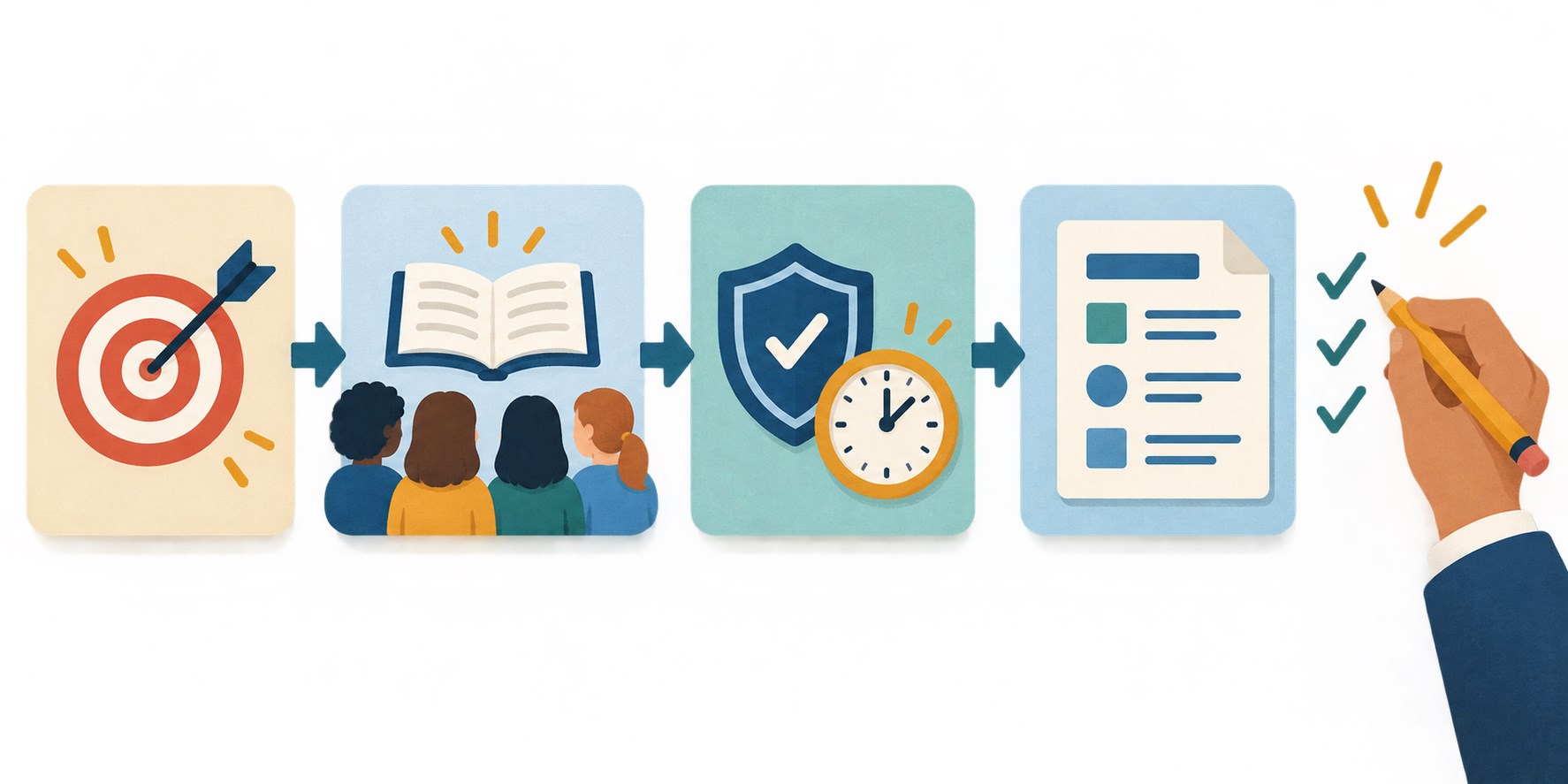
A useful classroom prompt usually contains four things:
- Objective: State the task and the learning outcome it should support.
- Context: Give the subject, age or grade, prior knowledge, time, and available resources.
- Constraints: Name requirements such as reading level, permitted sources, tone, accessibility, or length.
- Output: Specify the format you want, such as a timed outline, checklist, table, or set of questions with an answer key.
OpenAI’s current prompt guidance for teachers uses a similar task-context-output pattern. The more clearly you define the classroom need, the less time you will spend repairing a generic response.
Seven Practical Ways Teachers Can Use ChatGPT
1. Draft a lesson plan
ChatGPT can organize an objective into a sequence with an opening, modeling, guided practice, independent work, checks for understanding, and an exit task. It cannot know whether the timing, curriculum interpretation, or activity is right for your class unless you provide that information and evaluate the result.
Copy and customize: Create a [lesson length]-minute lesson outline for [grade/age] [subject] on [specific topic]. The learning objective is: [objective]. Students already know [prior knowledge]. Available resources are [resources]. Include a short opening, teacher modeling, guided practice, student practice, two checks for understanding, and an exit ticket. Explain how each stage supports the objective. Flag any factual or curriculum assumptions I should verify.
For a complete process, including a planning checklist and worked example, read How to Use AI for Lesson Planning.
2. Generate activity ideas within real constraints
A request for “fun activities” often produces ideas that need unavailable devices, excessive preparation, or more time than the lesson allows. Add practical limits and ask for several options before choosing one.
Copy and customize: Suggest five classroom activities for [grade/age] students practising [skill]. Each activity must take no more than [minutes], use only [materials], and work with a class of [number]. Include one quiet individual option, one pair activity, and one whole-class option. For each, state what evidence of learning I should look for.
3. Differentiate materials without changing the goal
ChatGPT can suggest clearer instructions, vocabulary support, worked examples, chunked tasks, or different response formats. Differentiation should improve access to the same important learning, not quietly replace the objective with easier but unrelated work.
Copy and customize: Adapt the teacher-created material below for learners who need [type of support]. Preserve the learning objective and all essential subject vocabulary. Add a short vocabulary preview, break the instructions into numbered steps, provide one worked example, and offer two ways students can demonstrate the same learning. Do not add facts that are not in the source. Material: [paste non-sensitive, permitted text].
Review the adaptation against the original. Check that important nuance, challenge, and subject accuracy have not disappeared.
4. Brainstorm questions that reveal thinking
ChatGPT can draft retrieval questions, discussion prompts, misconceptions, hinge questions, or exit tickets. The strongest use is not generating a large question bank; it is generating a small set aligned to a precise purpose.
Copy and customize: Create eight questions for [grade/age] students about [topic] using the approved notes below. Include two retrieval questions, two application questions, two questions that reveal common misconceptions, and two open discussion questions. Provide suggested answers and identify the evidence each question reveals. Use only the supplied notes: [paste notes].
Complete every question yourself. Check whether more than one answer could reasonably be correct and whether the wording accidentally gives the answer away.
5. Create a rubric or checklist
AI can quickly turn an assignment brief into draft criteria, but generated rubrics often use vague phrases such as “excellent understanding.” Ask for observable evidence and then decide whether each criterion genuinely measures the intended learning.
Copy and customize: Draft a four-criterion rubric for this [grade/age] assignment: [assignment]. The learning objective is [objective]. Use four performance levels. Describe observable evidence in student work, not personality or effort. Keep the differences between levels specific and concise. Do not add criteria that are not supported by the assignment brief.
Before using it, test the rubric against two imaginary responses. If the same work could fit multiple levels, revise the descriptors.
6. Summarize teacher-provided material
File upload and analysis can help teachers extract themes, compare documents, create a vocabulary list, or turn notes into a concise briefing. A summary can still omit context or overstate a point, so it should be checked against the original source.
Copy and customize: Using only the attached teacher-approved document, produce a summary for [audience]. Organize it under five short headings, preserve important qualifications, and list any terms that need explanation. After each section, identify the page or section of the source that supports it. If the document does not answer something, say so instead of guessing.
Use material you are permitted to upload. Do not assume that ownership of a paper copy gives permission to reproduce or upload an entire copyrighted work.
7. Draft parent or caregiver communication
ChatGPT can help organize a newsletter, event reminder, general progress update, or explanation of a classroom routine. It is safer to draft from non-identifying facts and insert necessary names or details yourself after the AI step.
Copy and customize: Draft a warm, concise message to parents or caregivers about [general topic]. Audience: families of [grade/year group]. Include [key facts], [action requested], and [deadline]. Use plain language, avoid jargon, and keep the message under [word count] words. Do not invent dates, links, policies, or contact details; mark missing information with square brackets for me to complete.
Read the message aloud before sending it. Check tone, names, dates, links, and whether the wording could embarrass or identify a student.
What Teachers Should Not Enter into ChatGPT
School policy comes first. Unless your institution has explicitly approved the exact account, workspace, and use case, do not enter information that identifies a student or exposes a protected record.
- Student names, personal email addresses, phone numbers, or home addresses
- Student ID numbers, login credentials, or account information
- Grades connected to an identifiable student
- Individual education plans, disability or medical information
- Safeguarding, counseling, disciplinary, or behavior records
- Identifiable student writing, photographs, audio, or video
- Private family communications or circumstances
- Assessment material that must remain confidential
- Copyrighted content you do not have permission to upload
Removing a name may not be enough if the remaining details can identify the student. Use fictional or aggregated examples where possible.
Data handling also depends on the account. OpenAI states that information shared in ChatGPT for Teachers is not used to train its models by default. Personal ChatGPT accounts have separate Data Controls, including an option to turn off “Improve the model for everyone.” A setting is not a substitute for school authorization, legal duties, or a proper data-protection review.
How to Review ChatGPT Output Before Classroom Use
OpenAI’s educator guidance describes model output as a starting point and reminds teachers that the model may be wrong. Its accuracy guidance also notes that ChatGPT can produce incorrect facts, fabricated citations, and confident but misleading answers.
Use this review sequence:
- Check alignment: Does the result address the exact learning objective?
- Verify facts: Confirm important claims, quotations, calculations, standards, and citations in authoritative sources.
- Test the task: Complete generated questions, activities, and instructions yourself.
- Check level and access: Review vocabulary, cognitive demand, accessibility, cultural assumptions, and required accommodations.
- Inspect tone: Make sure communication sounds like you and suits the audience.
- Remove sensitive data: Recheck the prompt and output before saving, exporting, or sharing.
- Preview delivery: Open the final material on the devices and format students will use.
When current information matters, use search if it is available and open the cited source yourself. Search can improve access to recent information, but it does not make every conclusion automatically correct.
Practical Tips for Better Results
- Work in stages. Ask for options, choose a direction, and refine one section instead of requesting an entire unit at once.
- Provide an example. A short sample of your preferred format can communicate expectations more clearly than several adjectives.
- Ask for uncertainty. Tell ChatGPT to flag assumptions, missing information, and claims that require verification.
- Use source boundaries. When working from supplied material, instruct it not to add outside facts.
- Request alternatives. Ask for two or three approaches with trade-offs rather than accepting the first idea.
- Preserve teacher voice. Rewrite generic phrasing and add the routines, examples, and expectations your students recognize.
- Save reusable templates. Keep prompts for recurring tasks, but update the objective and context each time.
Common Mistakes to Avoid
Using a one-line prompt
“Make a lesson about fractions” leaves the level, objective, time, resources, and assessment undefined. Add the context required to make a sensible plan.
Trusting polished language as evidence
A confident answer can still be wrong. Treat fluency as presentation, not proof, and verify important information.
Uploading sensitive material for convenience
Do not trade privacy for speed. Replace real records with fictional or aggregated information unless the exact workflow has institutional approval.
Asking AI to make the final professional decision
ChatGPT can organize possibilities, but decisions about assessment, accommodations, safeguarding, and suitability remain with qualified educators and their institutions.
Generating more content than you can review
A short, carefully checked resource is more useful than twenty pages of unverified material. Keep the requested output proportional to the time available for review.
Frequently Asked Questions
Is ChatGPT for Teachers free?
OpenAI says ChatGPT for Teachers is free through June 2028 for verified educators and staff at accredited U.S. K–12 schools or districts. Eligibility does not extend to every country, higher education user, or student. Other ChatGPT free and paid plans have different features and limits.
Can ChatGPT create a complete lesson plan?
It can draft a complete structure, but a teacher should verify the objective, content, standards, timing, differentiation, resources, and assessment before use. A complete-looking response is not the same as a classroom-ready plan.
Can ChatGPT summarize an uploaded PDF?
File analysis is available on supported plans and accounts. Confirm that you have permission to upload the document, avoid sensitive data, and compare the summary with the original because important qualifications can be missed.
Can teachers use ChatGPT to grade student work?
Do not upload identifiable student work or delegate a consequential grade unless your institution has approved the tool and workflow. If permitted, use AI only as structured support, apply a teacher-reviewed rubric, inspect the reasoning, and make the final decision yourself.
Should teachers tell students when AI helped create material?
Follow school policy. Where appropriate, explaining how a draft was generated and checked can model responsible AI literacy and show students why verification matters.
Conclusion
ChatGPT is most valuable to teachers as a flexible drafting and thinking partner. It can organize a lesson, propose activity options, adapt teacher-created material, draft questions and rubrics, summarize approved sources, and shape routine communication.
The reliable workflow is simple: define the objective, provide non-sensitive context, specify the output, and review every important detail. Start with one low-risk task, keep the teacher’s judgment visible, and use the time saved to improve the learning experience rather than merely produce more material.